Azure.CodeSigning.Dlib.dll was not found

candide

New member
hi,
I'm trying to sign my file under XLS Padlock - Security - EXE-Code-Signature and choosed "Azure Trusted Signing" which btw was recalled by Microsoft as "Artifact Signing" as you can see from my path.

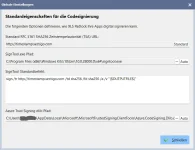
Under Global Settings I entered the correct path
"C:\Users\JohnDoe\AppData\Local\Microsoft\MicrosoftArtifactSigningClientTools\Azure.CodeSigning.Dlib.dll"
This path exists on my machine

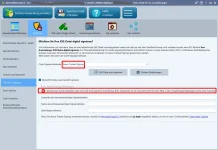
but under the box "Azure Trusted Signing Settings" there is an red X telling me
SignTool.exe was found but not the DLib Signtool Extension.

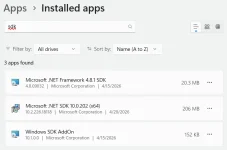
These are the current installed SDK files.
1776704086417.webp
Maybe there's a wrong version installed?
thx
 
@oldteacher: Thanks for your link.

This is what I installed so far and added those files from your link:

  1. ArtifactSigningClientTools.msi
  2. azure-cli-2.85.0-x64.msi
  3. dotnet-runtime-8.0.18-win-x64.exe
  4. dotnet-sdk-8.0.420-win-x64.exe
  5. dotnet-sdk-10.0.202-win-x64.exe
  6. winsdksetup.exe
  7. xlspadlocksetup64.exe
1776948585950.webp

1776948749286.webp

Not clear whats wrong. There is no adequate hint how to setup XLS Padlock with Artifact Signing. An update of your help file could really help.
thx
 
When you click the Auto button next to the Azure Trust Signing dlib field (or when XLS Padlock probes the DLL automatically before signing), it looks in the old per-user location used by the legacy Microsoft.Trusted.Signing.Client package:

%LOCALAPPDATA%\Microsoft\MicrosoftTrustedSigningClientTools\Azure.CodeSigning.Dlib.dll
However, Microsoft renamed the product from Trusted Signing to Azure Artifact Signing and moved the install location at the same time. XLS Padlock 2025.2 is still looking at the old path, so it reports "SignTool.exe was found, but not the DLib SignTool extension" even though the DLL is sitting correctly on your machine.

Workaround:
  1. In Global Settings, click the ... (Browse) button next to Azure Trust Signing dlib Pfad.
  2. Navigate to C:\Program Files (x86)\Microsoft\ArtifactSigningClientTools\bin\
  3. Select Azure.CodeSigning.Dlib.dll and click Open.
The status line on the EXE Code Signing page will switch to "SignTool.exe and DLib SignTool extension were found." and you'll be able to sign. Nothing else needs to change — your SignTool.exe path, endpoint, account name and profile name are all correct.

The next version (XLS Padlock 2026, shipping shortly) will probe both the new Program Files\Microsoft\ArtifactSigningClientTools\bin\ path and the legacy AppData path when you click Auto. You won't need to configure the path manually anymore.

Thanks again for the screenshots, really helpful!
 
Do not mean to hijack the thread but I sure hope azure sign is coming to exeoutput and htmlexe soon. Use it now exclusively and sure would make life easier :)
 
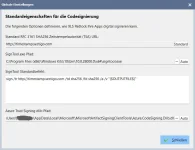
So I entered the new path
C:\Users\John Doe\AppData\Local\Microsoft\MicrosoftArtifactSigningClientTools\Azure.CodeSigning.Dlib.dll
and still got the red X.
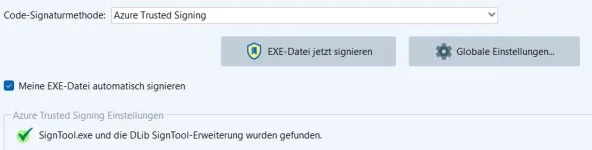
Then I changed the combobox "Code-Signaturmethode" above to another entry and back to "Azure Trusted Signing" and THEN I got the green check sign.
Means changing the path to Azure.CodeSigning.Dlib.dll in the Global Settings alone does not work, you have to change the "Code-Signaturmethode" to another entry and back.

For any user this is not obvious, if you could change this behavior in the next versions that would be nice:)
thx anyway(y)
1777381922494.webp
1777381892050.webp
 
Thanks for the final feedback and yes, we'll add a refresh too without having to change the method. Great that it works for you now!
 
Back
Top