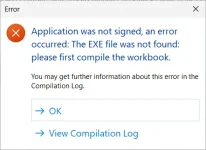
ERROR Application was not signed, an error occurred: The EXE file was not found: please first compile the workbook.

candide

New member
hi,
got an error when using Security - EXE Code Signing and click on "Sign EXE File Now"
1783607370221.webp

and yes, the Excel VBA was compiled correctly before. The log file says:
[2026-07-09 16:24:35] ERROR Application was not signed, an error occurred: The EXE file was not found: please first compile the workbook.

Maybe its because some Microsoft .NET Files were updated?
And yes the output path is NOT opened in Explorer as other postings say that's no good idea...
thx
 
Last edited:
"Sign EXE File Now" only signs an .exe that already exists in your project's output folder. It does not build it. The message "The EXE file was not found: please first compile the workbook" means XLS Padlock did not find a compiled .exe there when you clicked Sign.

Two checks, in order:

  1. Build the secure application first, then sign.
    The .exe is created only by the "Build Secure Application" button on the XLS Padlock ribbon. Compiling the VBA project inside Excel (Debug > Compile VBAProject) is a separate step and does not produce the .exe, so signing right after a VBA compile will report the EXE as missing. Click "Build Secure Application", let it finish, confirm the .exe is present in your output folder, then click "Sign EXE File Now".
  2. If you did build and the .exe is still reported missing, a security tool is most likely removing it.
    A freshly built, not-yet-signed .exe is a frequent false positive. Microsoft Defender (or another antivirus) can quarantine or delete the output .exe the moment the build writes it, so when the signing step looks for it a second later it is already gone. Your hunch about a recent .NET/Windows update fits: updated Defender definitions can start flagging a build that was fine the day before.
  • Open Windows Security, then Virus and threat protection, then Protection history, and look for a removed or quarantined item pointing at your .exe or its folder. Restore it if you find it.
  • Add exclusions for your project's output folder and for XLSPadlockDesigner.exe.
  • Rebuild, confirm the .exe stays in the folder, then sign.
To help pin it down, could you tell us:

  • Does "Build Secure Application" finish without error, and does the .exe actually appear in the output folder (even briefly) before you sign?
  • Which antivirus or security software is running, and is the output folder excluded from it?
  • Your exact XLS Padlock version and build (Help, then About).
 
XLS Padlock Version 2026.0

So the steps I did in XLS Padlock were:
  • click button "Build Secure Application"
  • the exe appears in the output path
  • I logged in Microsoft azure (az login), my certificate is active
  • next I click button "Sign EXE File Now"
  • the black cmd window appears two times but nothing more happens
But I got the MyApp.xlsm.xplcompil.log file
and there is i.e. one line saying
Microsoft.Identity.Client.Extensions.Msal.MsalCachePersistenceException: Persistence check failed. Inspect inner exception for details
Whats wrong?
thx
 

Attachments

Good news first: the earlier "EXE not found" is gone, your build now produces the .exe, so we are past that. What is failing now is the Azure signing step itself, and the line in your log is the key:

Microsoft.Identity.Client.Extensions.Msal.MsalCachePersistenceException: Persistence check failed

That exception does not come from XLS Padlock. It comes from Microsoft's Azure signing components: the Trusted Signing (Azure Artifact Signing) tooling uses Azure.Identity and MSAL, and on startup MSAL runs a self-test to confirm it can store its token cache on the machine. On Windows it encrypts that cache with DPAPI under your user profile. When the self-test fails it throws "Persistence check failed" and the signing call stops, which is exactly why the two cmd windows open and then nothing more happens, even though az login succeeded and your certificate is active.

We have not seen this one reported before, which points to something specific to this machine's Azure and MSAL environment rather than a general XLS Padlock problem. These are the things that cause it, most effective first:

  • Run the signing in the exact same Windows user session where az login succeeded. Do not start XLS Padlock elevated (Run as administrator) or as a different user, and avoid doing it over a remote-desktop or service context. DPAPI ties the cache to the user profile, so a context mismatch fails the check.
  • Make sure %LOCALAPPDATA% is a normal local, writable path, not redirected to a network share or into OneDrive. MSAL keeps its cache under %LOCALAPPDATA%.IdentityService.
  • Clear the stale credential cache and re-authenticate: run az logout, then az login again. If it persists, close XLS Padlock, delete the folder %LOCALAPPDATA%.IdentityService, and sign once more so it is recreated cleanly.
  • Confirm the machine has the current Microsoft Visual C++ Redistributable (x64) and the .NET runtime the Azure tooling needs. A missing runtime can make the Azure signing step fail quietly.
Separately, it is worth being on XLS Padlock 2026.1 (released today), which improves Azure Artifact Signing support in general. It does not target this specific MSAL cache error, so treat it as good housekeeping rather than the fix here.

To help us narrow it down:

  • How did you set up signing in XLS Padlock: the built-in Azure Artifact Signing option, or a custom SignTool command line pointing at the Azure dlib and a metadata.json?
  • Are you signing from an ordinary desktop session on your own account, or over remote desktop, from an elevated prompt, or a service account?
  • Your Windows version, and whether this machine is managed by a company IT policy.
 
hi,
I installed XLS Padlock 2026.1.
* used Azure Artifact Signing
* ordinary desktop session
* win11 pro, no IT management (I'm a single developer)
 
Thanks, that is useful, because it clears the whole environment side.

First, the detail you noticed about the two black windows, because it tells us something concrete. XLS Padlock signs by calling SignTool with the Azure dlib. When SignTool comes back with a failure code, XLS Padlock waits two seconds and runs it exactly one more time before giving up. Two windows therefore means two failed attempts, not a hang: the signing call is failing fast, twice.

Now the reason your successful az login does not help. The dlib does not use your Azure CLI session directly. It authenticates through DefaultAzureCredential, which walks a fixed chain of credential types in order and stops at the first one that works. AzureCliCredential, the one that would pick up your az login, sits well down that chain. Earlier in the chain sits a credential that reads the persisted MSAL token cache, a DPAPI-encrypted file under %LOCALAPPDATA%\.IdentityService. Before using that cache, MSAL runs a self test: write a value, read it back, compare. On your machine that self test fails, it raises MsalCachePersistenceException, and the exception ends the signing call before AzureCliCredential is ever tried. So the certificate being active and az login being fine genuinely change nothing.

The supported way around it is to tell the dlib to skip the credentials you do not use, so it goes straight to the Azure CLI one. That is an official field of the metadata file, ExcludeCredentials, documented by Microsoft here: https://learn.microsoft.com/en-us/azure/artifact-signing/how-to-signing-integrations

You can test it in about a minute, without rebuilding anything, because you can run by hand exactly what XLS Padlock runs.

Step one. In your output folder, next to the built EXE, XLS Padlock leaves a file named sign-metadata.json holding your endpoint, account name and certificate profile name. Copy it to my-metadata.json in the same folder. Use a different name deliberately: XLS Padlock rewrites sign-metadata.json from those three fields every single time it signs, so anything extra added there would be erased at the next build.

Step two. Edit my-metadata.json and add the ExcludeCredentials array. AzureCliCredential is the one name kept out of the list, so it becomes the one that gets used:

{
"Endpoint": "<keep your value>",
"CodeSigningAccountName": "<keep your value>",
"CertificateProfileName": "<keep your value>",
"ExcludeCredentials": [
"ManagedIdentityCredential",
"WorkloadIdentityCredential",
"SharedTokenCacheCredential",
"VisualStudioCredential",
"VisualStudioCodeCredential",
"AzurePowerShellCredential",
"AzureDeveloperCliCredential",
"InteractiveBrowserCredential"
]
}

Step three. Make the CLI context explicit, because AzureCliCredential inherits whatever tenant and subscription the CLI currently points at, and an ambiguous context is a known cause of local signing failures:

az login --tenant <your tenant id>
az account set --subscription <your subscription id>

Step four. From an ordinary command prompt, not elevated, in the same Windows account where az login succeeded, run the same command XLS Padlock builds, pointed at my-metadata.json:

"C:\path\to\signtool.exe" sign /v /debug /fd SHA256 /tr "http://timestamp.acs.microsoft.com" /td SHA256 /dlib "C:\path\to\Azure.CodeSigning.Dlib.dll" /dmdf "C:\your\output\folder\my-metadata.json" "C:\your\output\folder\YourApp.exe"

The signtool.exe and dlib paths are the ones already set in XLS Padlock under Menu, Environment Options, Code Signing. Running it by hand is worth it for a second reason: you see the complete error text on screen, including the inner exception that the compilation log cuts off.

If that signs your EXE, wire it into XLS Padlock permanently. Set Security, EXE Code Signing, Code Signing Method to SignTool Commands, and paste the same command as a single line, with the file to sign replaced by the marker for the built EXE:

sign /v /debug /fd SHA256 /tr "http://timestamp.acs.microsoft.com" /td SHA256 /dlib "C:\path\to\Azure.CodeSigning.Dlib.dll" /dmdf "C:\your\output\folder\my-metadata.json" "{$OUTPUTFILE$}"

Leave the path to signtool.exe out of that line, it is taken from the Environment Options. Everything else, including your timestamping, stays identical to what the built-in method does. The gap here is on our side, the built-in Azure Artifact Signing method regenerates its metadata file from three fields and gives you no way to add ExcludeCredentials, and we have noted that as product feedback.

If it still fails, these are the next steps, and the log is what will settle it:

  • Post the whole block from your .xplcompil.log around the exception, not only the first line. The message ends with "Inspect inner exception for details", and it is that inner exception that names the real cause.
  • Close XLS Padlock and Excel, delete the folder %LOCALAPPDATA%\.IdentityService, then run az login again. A cache file left in a bad state, for example written once by a process running under a different context, produces this exact error, and the folder is rebuilt cleanly on the next run.
  • Check the two components the dlib depends on. SignTool must come from Windows SDK 10.0.2261.755 or later, the 20348 SDK build is explicitly not supported with the dlib, and the .NET 8 Runtime must be installed for the same architecture as the SignTool you point at, so an x64 signtool.exe needs the x64 runtime. Microsoft ships an installer that puts a matching set in place, winget install -e --id Microsoft.Azure.ArtifactSigningClientTools, after which you point Environment Options at the freshly installed Azure.CodeSigning.Dlib.dll.

 
hello support,

you wrote
sign /v /debug /fd SHA256 /tr "http://timestamp.acs.microsoft.com" /td SHA256 /dlib "C:\path\to\Azure.CodeSigning.Dlib.dll" /dmdf "C:\your\output\folder\my-metadata.json" "{$OUTPUTFILE$}"

In a cmd window this works and the exe is signed.

Changing the SignTool Commands in XLS Padlock to

sign /v /debug /fd SHA256 /tr "http://timestamp.acs.microsoft.com" /td SHA256 /dlib "C:\path\to\Azure.CodeSigning.Dlib.dll" /dmdf "C:\your\output\folder\my-metadata.json" "{$OUTPUTFILE$}"

or

sign /v /debug /fd SHA256 /tr "http://timestamp.acs.microsoft.com" /td SHA256 /dlib "C:\path\to\Azure.CodeSigning.Dlib.dll" /dmdf "C:\your\output\folder\my-metadata.json" "<full path of the EXE>"

and click "Sign EXE file Now" still does not sign the EXE, but as cmd window works fine thats ok.
 
hopefully my last (?) question:
My signed DoStuff.EXE now is ready for the WooCommerce Shop.

Its still not clear to me where to say my DoStuff.EXE has a trial period of 14 days. After that trial the nag screen should say to the user "please enter a key".

Is the keymaxdays parameter in the workbooks.json file the right place?
Where do I enter the 14 days trial?
thx
 
Last edited:
Back
Top