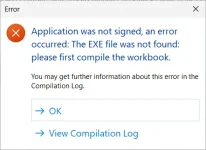
Thanks, that is useful, because it clears the whole environment side.
First, the detail you noticed about the two black windows, because it tells us something concrete. XLS Padlock signs by calling SignTool with the Azure dlib. When SignTool comes back with a failure code, XLS Padlock waits two seconds and runs it exactly one more time before giving up. Two windows therefore means two failed attempts, not a hang: the signing call is failing fast, twice.
Now the reason your successful az login does not help. The dlib does not use your Azure CLI session directly. It authenticates through DefaultAzureCredential, which walks a fixed chain of credential types in order and stops at the first one that works. AzureCliCredential, the one that would pick up your az login, sits well down that chain. Earlier in the chain sits a credential that reads the persisted MSAL token cache, a DPAPI-encrypted file under %LOCALAPPDATA%\.IdentityService. Before using that cache, MSAL runs a self test: write a value, read it back, compare. On your machine that self test fails, it raises MsalCachePersistenceException, and the exception ends the signing call before AzureCliCredential is ever tried. So the certificate being active and az login being fine genuinely change nothing.
The supported way around it is to tell the dlib to skip the credentials you do not use, so it goes straight to the Azure CLI one. That is an official field of the metadata file, ExcludeCredentials, documented by Microsoft here:
https://learn.microsoft.com/en-us/azure/artifact-signing/how-to-signing-integrations
You can test it in about a minute, without rebuilding anything, because you can run by hand exactly what XLS Padlock runs.
Step one. In your output folder, next to the built EXE, XLS Padlock leaves a file named sign-metadata.json holding your endpoint, account name and certificate profile name. Copy it to my-metadata.json in the same folder. Use a different name deliberately: XLS Padlock rewrites sign-metadata.json from those three fields every single time it signs, so anything extra added there would be erased at the next build.
Step two. Edit my-metadata.json and add the ExcludeCredentials array. AzureCliCredential is the one name kept out of the list, so it becomes the one that gets used:
{
"Endpoint": "<keep your value>",
"CodeSigningAccountName": "<keep your value>",
"CertificateProfileName": "<keep your value>",
"ExcludeCredentials": [
"ManagedIdentityCredential",
"WorkloadIdentityCredential",
"SharedTokenCacheCredential",
"VisualStudioCredential",
"VisualStudioCodeCredential",
"AzurePowerShellCredential",
"AzureDeveloperCliCredential",
"InteractiveBrowserCredential"
]
}
Step three. Make the CLI context explicit, because AzureCliCredential inherits whatever tenant and subscription the CLI currently points at, and an ambiguous context is a known cause of local signing failures:
az login --tenant <your tenant id>
az account set --subscription <your subscription id>
Step four. From an ordinary command prompt, not elevated, in the same Windows account where az login succeeded, run the same command XLS Padlock builds, pointed at my-metadata.json:
"C:\path\to\signtool.exe" sign /v /debug /fd SHA256 /tr "
http://timestamp.acs.microsoft.com" /td SHA256 /dlib "C:\path\to\Azure.CodeSigning.Dlib.dll" /dmdf "C:\your\output\folder\my-metadata.json" "C:\your\output\folder\YourApp.exe"
The signtool.exe and dlib paths are the ones already set in XLS Padlock under Menu, Environment Options, Code Signing. Running it by hand is worth it for a second reason: you see the complete error text on screen, including the inner exception that the compilation log cuts off.
If that signs your EXE, wire it into XLS Padlock permanently. Set Security, EXE Code Signing, Code Signing Method to SignTool Commands, and paste the same command as a single line, with the file to sign replaced by the marker for the built EXE:
sign /v /debug /fd SHA256 /tr "
http://timestamp.acs.microsoft.com" /td SHA256 /dlib "C:\path\to\Azure.CodeSigning.Dlib.dll" /dmdf "C:\your\output\folder\my-metadata.json" "{$OUTPUTFILE$}"
Leave the path to signtool.exe out of that line, it is taken from the Environment Options. Everything else, including your timestamping, stays identical to what the built-in method does. The gap here is on our side, the built-in Azure Artifact Signing method regenerates its metadata file from three fields and gives you no way to add ExcludeCredentials, and we have noted that as product feedback.
If it still fails, these are the next steps, and the log is what will settle it:
- Post the whole block from your .xplcompil.log around the exception, not only the first line. The message ends with "Inspect inner exception for details", and it is that inner exception that names the real cause.
- Close XLS Padlock and Excel, delete the folder %LOCALAPPDATA%\.IdentityService, then run az login again. A cache file left in a bad state, for example written once by a process running under a different context, produces this exact error, and the folder is rebuilt cleanly on the next run.
- Check the two components the dlib depends on. SignTool must come from Windows SDK 10.0.2261.755 or later, the 20348 SDK build is explicitly not supported with the dlib, and the .NET 8 Runtime must be installed for the same architecture as the SignTool you point at, so an x64 signtool.exe needs the x64 runtime. Microsoft ships an installer that puts a matching set in place, winget install -e --id Microsoft.Azure.ArtifactSigningClientTools, after which you point Environment Options at the freshly installed Azure.CodeSigning.Dlib.dll.